
You are allowed to split your expenses such as Lodging with another colleague when you attend CME provided you sign an attestation or something similar to link below (feel free to modify the document to capture the details for your situation).
- Finish all Abridge Inside notes on Friday afternoon before the night of CIS
- The information in the Abridge tab (full transcript, PVS, etc) will only be available for the instance that the note is recorded in. Legacy notes brought over to the new CIS instance will be plain text without the linked evidence tab.
- After CIS cutover,new visits will follow normal Abridge Inside workflows in the CIS environment.
- During downtime, users can use the Abridge App and the Web Recorder – there is no limitations on the number of notes they can create, and will continue to be available as normal.
CIS migration update will occur on Saturday April 5th, 2025
Around 1am – 5am: Downtime/Downtime Recovery
While cortext is still available, the ask is to use chart chart for communication with subspecialists (except those outside of the GSAA) until the migration.
During the migration, pending orders and any customizations in health connect will not be carried over. Please be sure to sign any pending orders or notes.
Hi all, please visit Downtime Protocols & Resouces as needed during any scheduled downtime or cyber event. You may also find this link through search or above menu by going to “Resources” ->”Procedures and Protocols” => Downtime Protocols & Resouces. Of note, we do have downtime scheduled on Sunday, December 15, 2024, 9:00 PM – Monday, December 16, 2024, 5:00 AM for Scanned Documents and Images in Chart Review. Please refer to above link for more information
You might have noticed your inbasket folders suddenly look different.
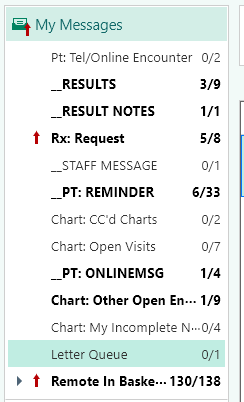
The ones with _CAPITAL will migrate over (stay in your inbasket) during 2/8/2025 Instance Simplification. The rest WILL NOT, so please read below on how to take care of the ones you want to ‘save’ (short answer- use Patient Reminders).
Chart Chat is now an essential tool to be leveraged between clinician in order to provide high quality patient care. Below are recommendations created with the intent to improve the communication between clinicians via KP HealthConnect Chart Chat in Kaiser Permanente NCAL.
Best Practices for Clinician-to-Clinician Chart Chat
Chart chat messages should be clinical and concise. Send as few messages as possible to minimize disruptions.
Use Emojis instead of acknowledgements like “Thank you” and “Got it!”. Emojis result in fewer interruptions as they do not push notifications to members of a conversation.
In the Inpatient space, Chart Chat can be used to communicate urgent/emergently, but discretion should be used by the sender, and if it is felt that a 20 minute response time interval is too long, direct (phone call) communication may be a better option.
If your chat conversations last longer than a few messages or if there is a complex issue requiring significant background information or discussion, consider a phone call as a better option.
Attach the patient chart to the chat if you are messaging about a patient. This better delineates to the receiving provider which patient the message is about.
If your chart chat remains unread after a reasonable amount of time, consider reaching out to the person via another mode of communication.
Haiku Best Practices:
Allow “Push Notifications”
Allow “Break Through Do Not Disturb Availability”. This allows you to set your status to Do Not Disturb (you will not get alerts from non-clinicians) while still being able to get clinician-to-clinician alerts. Recommended for providers who are “On-Call”
Allow “Play Sound” which will allow you to hear a new chart chat alert if you are in Haiku (but not in Chart Chat).
Login to Haiku at the beginning of your workday, similar to how you login to your computer. Logging in before getting a new message will allow you to take advantage of “message preview” on your KP iPhone home screen as well as the quick jump to Chart Chat from the KP iPhone home screen and also ClinConnect Haiku icon.
Getting into the habit of setting your status helps minimize accidental off-hour alerts.
Understanding availability statuses for providers:
When messaging someone via Chart Chat, the receiving individual’s “Availability Status” appears beside their name.
During daytime hours:
Available: The provider user is logged into a KPHC workstation.
Busy: The default status when a provider user is not logged into KPHC. If the person is working clinically that day, they will likely see your message the next time they log into KPHC or look at Haiku on their mobile device. Most clinicians who carry mobile devices with KPHC loaded will get a notification on their device.
Do Not Disturb: You can set this status when you are in a procedure or are “on-call” after normal clinical hours. Additionally, surgeons will have this status set automatically based on their OR cases. Users will not receive notifications on their mobile devices while they are in “Do Not Disturb” status, except from other clinicians (provided they have allowed “Break Through Do Not Disturb Availability”. This setting is meant to convey to staff that they should not expect a quick response to their message.
Offline: Users are not reachable by Chart Chat when in this status. This status is manually set by the user.
- Order home IV in the home IV section, using the home infusion order set (no new changes)
- Only need to put end date in the admin instructions (some abx will have the type of pump automatically selected)
- Sign order (not sign/held, no new changes here either)
- Order will be sent electronically to Home Infusion Pharmacy, a hard copy is not required (this is new, this week, PICC RN still asked for hard copy or wet signature, which is not needed)
- Home abx will be shown in a new section, Home Infusion Medications, on the AVS/d/c instruction, not Medications with the other PO meds (this is new)
Click here for full Job Aid on Home Infusion Discharge Orders
- Go to Discharge Navigator and click on “Reconcile Orders.” Click on the “Click Here” button below “Reconcile and Write Discharge orders”
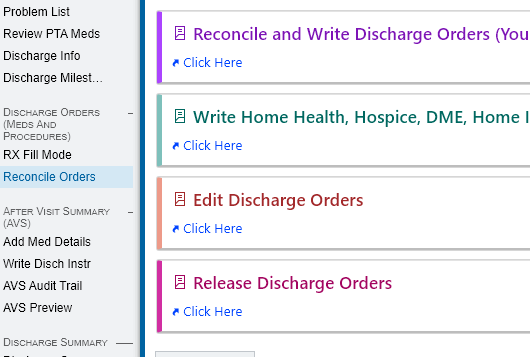
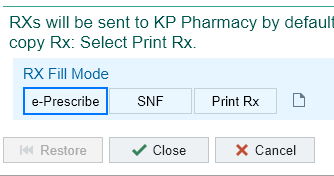
2. Click on the appropriate Rx fill mode. Default will be San Leandro Pharmacy.
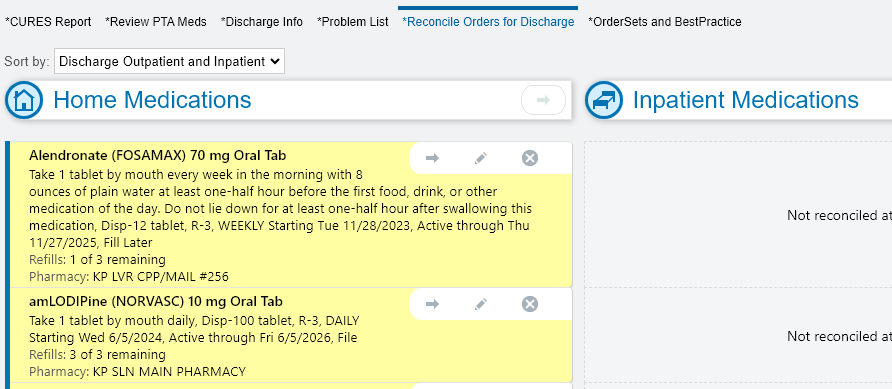
3. Reconcile patient’s medications. Continue any outpatient meds or order any new inpatient medications here.
4. If patient is picking up medication at a different pharmacy, click on “KP SLN DISCHARGE” and search for the appropriate pharmacy in the pop-up window. Otherwise, click on “Sign & Hold Orders”
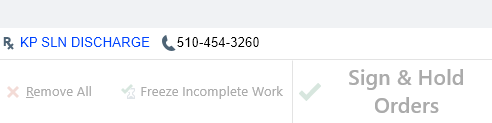
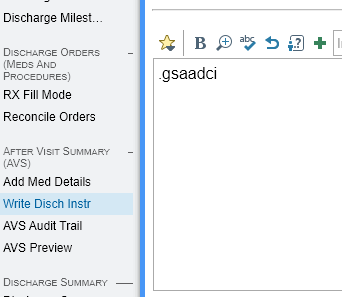
5. Next click on “Write Discharge Instructions.” Use the dotphrase “.gsaadci”. Fill in all dropdown menus and prompts.
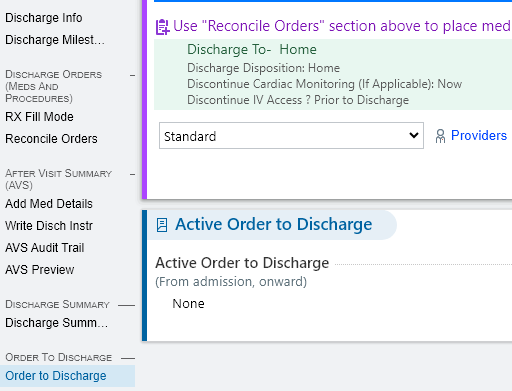
6. Finally click on “Order to Discharge” and write Discharge orders
- In the search bar type in “Work”
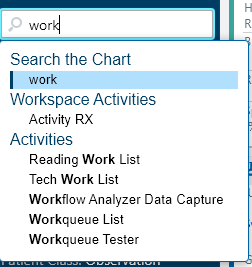
2) Next, choose “Activity Rx” under Workspace Activities
3) Choose the appropriate letter type “Work” or “Caregiver”
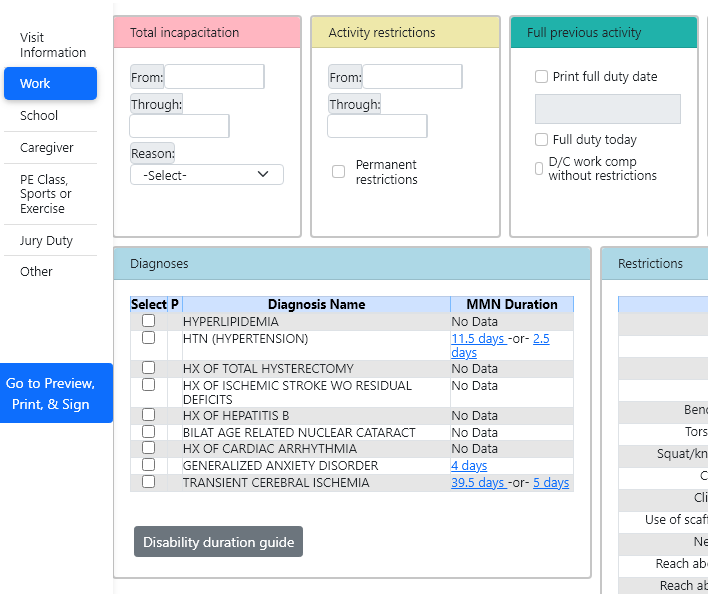
4) Click on the appropriate diagnosis and fill in the “From” and “To” fields with the amount of days you would like the patient to be off for.
5) Click on “Preview, Print, & Sign” then click Sign Only.